.webp)
Processing returns in Microsoft Dynamics 365 Business Central is one of those tasks that looks straightforward on paper but quickly gets complicated in practice. A customer wants to send something back. The warehouse needs to know what is coming. Finance needs a credit memo. And the customer service team needs to keep everyone updated without losing track of the original order.
Business Central handles the basics. It can create sales return orders, generate credit memos, and adjust inventory. But for brands dealing with high return volumes, warranty claims, or multi-channel operations, the native workflow has real gaps.
This guide walks through the standard Business Central returns process step by step, flags the limitations that slow teams down, and shows where automation fills the gaps.
- Business Central processes sales returns through return orders, credit memos, and item journals, but the workflow is manual and lacks self-service options.
- Common pain points include no customer-facing portal, no photo evidence collection, and no automated warranty rule checks.
- Brands with 50+ returns per month typically outgrow the native BC returns workflow within the first year.
- Claimlane integrates directly with Business Central to automate claims intake, trigger credit memos on resolution, and give customers a branded self-service portal.
How Business Central Handles Sales Returns
Business Central offers two main paths for processing returns:
- Sales Return Orders for cases where the customer ships the product back
- Sales Credit Memos for cases where only a financial adjustment is needed (no physical return)
Both live under the Sales module and connect to inventory, general ledger, and customer records. The workflow is functional but designed for internal use by finance and warehouse teams, not for customer-facing operations.
The Standard Return Order Flow

The typical process follows this sequence:
- A customer contacts the support team (usually by email or phone) to request a return
- A customer service agent creates a Sales Return Order in Business Central, referencing the original sales order
- The return order specifies which items are being returned, the reason code, and whether the customer gets a replacement or refund
- The warehouse receives the returned item and posts a receipt against the return order
- Finance reviews and posts a credit memo to complete the financial transaction
Each step requires manual input. There is no customer-facing portal where buyers can initiate returns themselves, upload photos of damaged products, or track the status of their claim.
Creating a Sales Return Order Step by Step
Here is the exact workflow inside Business Central:
Step 1: Open the Sales Return Orders Page
Navigate to Sales > Sales Return Orders and select New. Business Central creates a blank return order with an auto-assigned document number.
Step 2: Select the Customer
Enter the customer name or number. Business Central pulls the customer's address, payment terms, and posting groups automatically from the customer card.
Step 3: Reference the Original Order
Use the Get Posted Document Lines to Reverse function to pull in line items from the original sales invoice or shipment. This saves time and ensures the return order matches the original transaction exactly.
Step 4: Add Return Reason Codes
Assign a reason code to each line item. Business Central ships with basic reason codes (defective, wrong item, customer changed mind), but most brands customize these to match their return categories.
Step 5: Set the Return Location
If the brand uses a dedicated returns warehouse or inspection area, set the location code on the return order. This routes the inventory correctly when the item arrives.
Step 6: Post the Receipt
Once the warehouse confirms the item has arrived, post the receipt on the return order. This updates inventory quantities and marks the return as physically received.
Step 7: Create and Post the Credit Memo
From the return order, select Post and choose Ship and Invoice to automatically generate and post the credit memo. Alternatively, create a separate credit memo if the financial adjustment needs additional review. For more on automating this specific step, see this guide on Business Central credit memo automation.
Where Business Central Falls Short on Returns
Business Central is an excellent ERP. It was not designed to be a returns management platform. The gaps become obvious as return volumes grow.
No Customer Self-Service Portal
Customers cannot submit returns or warranty claims themselves. Every return starts with an email or phone call, which creates a bottleneck at the customer service team. Brands that handle 50+ returns per month feel this immediately.
A dedicated self-service claims portal lets customers submit claims with photos, order details, and defect descriptions without involving an agent. The claim data flows directly into the system, pre-structured and ready for review.
No Photo or Video Evidence Collection
Business Central has no built-in way to collect and store images or videos from customers as part of a return or warranty claim. This means agents often ask customers to email photos separately, which then need to be manually attached to the return order or stored in a shared drive.
No Warranty Rule Engine
Business Central does not check whether a product is still under warranty before processing a claim. Agents must manually verify warranty status by cross-referencing purchase dates, warranty periods, and product-specific rules. For brands with complex warranty terms (different periods for different product categories, prorated coverage, extended warranties), this is error-prone and time-consuming.
Limited Automation
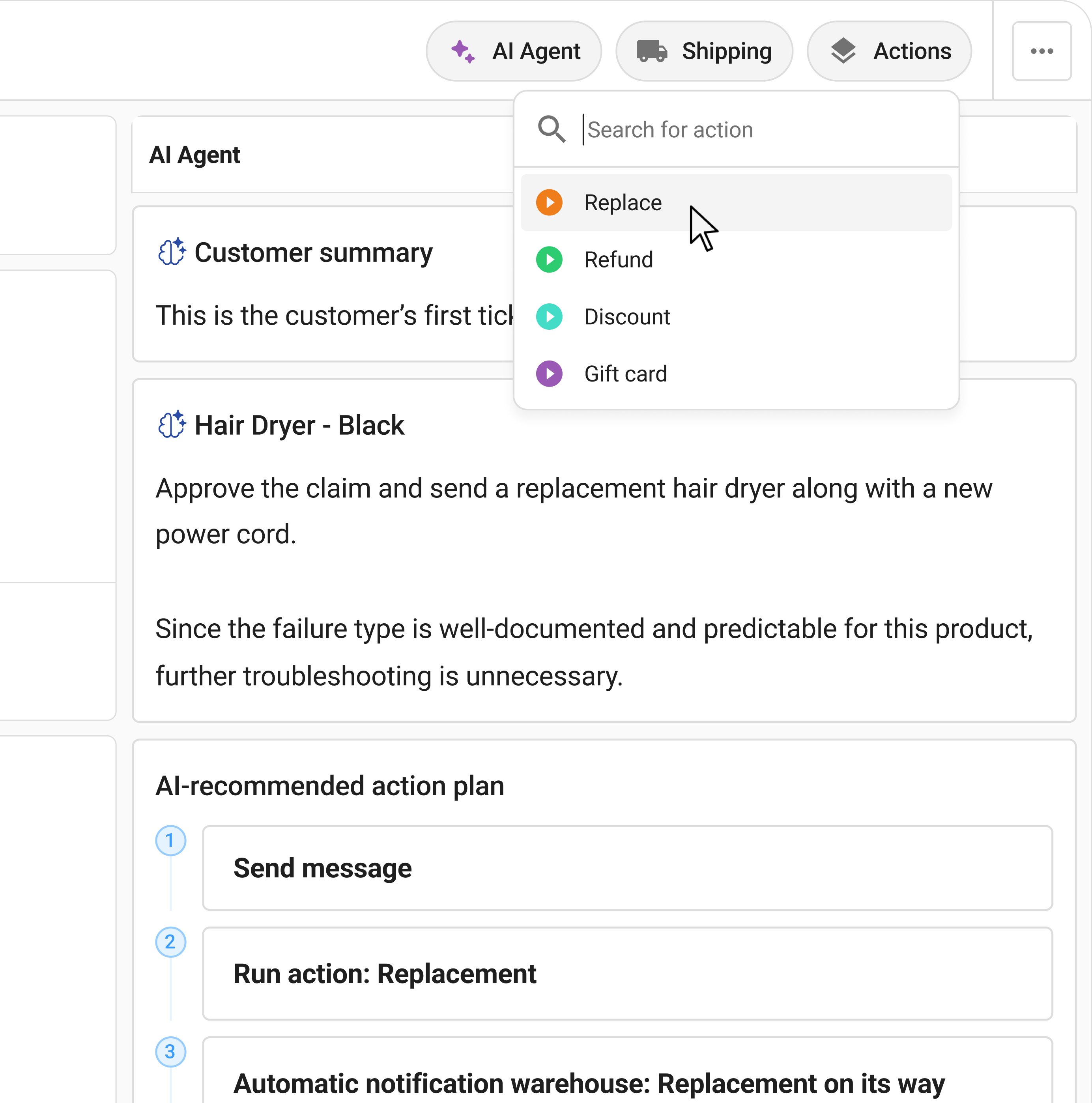
The return order workflow is almost entirely manual. There is no way to auto-approve claims that meet certain criteria, auto-route claims to the right team, or trigger status emails to customers at each stage. Claimlane's workflow automation fills this gap by adding rule-based routing, automatic status emails, and conditional approval logic.
No Supplier Claims Management
When a returned product has a manufacturing defect, the brand often needs to forward the claim to the supplier for reimbursement. Business Central does not have a built-in workflow for this. The forward-to-supplier feature in Claimlane handles supplier claims within the same platform where customer claims are managed.
Business Central Returns vs Dedicated Returns Software
| Capability | Business Central (Native) | Claimlane + Business Central |
|---|---|---|
| Sales return orders | Yes | Yes (auto-created) |
| Credit memo generation | Manual | Automated on resolution |
| Customer self-service portal | No | Yes (branded, multilingual) |
| Photo/video evidence | No | Yes (collected at submission) |
| Warranty validation | Manual check | Automated rule engine |
| AI claim assessment | No | Yes (image analysis + rules) |
| Supplier claim forwarding | No | Yes (with full evidence) |
| Status emails to customers | No | Automated at each stage |
| Analytics dashboard | Basic financial reports | Claim patterns, defects, supplier metrics |
How Claimlane Integrates with Business Central
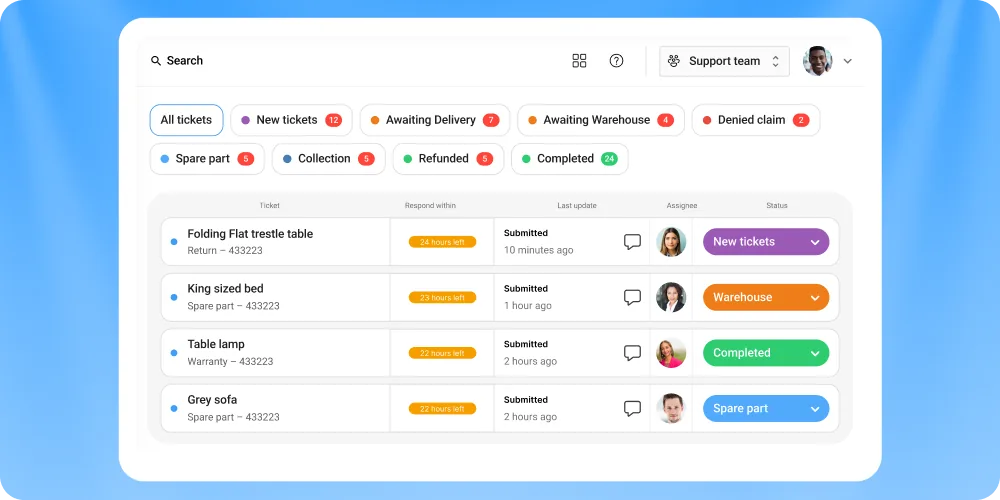
Claimlane connects to Business Central through a native integration that syncs customer data, order history, and product information. When a claim is resolved in Claimlane, the integration automatically triggers the corresponding action in Business Central.
What the Integration Does
- Pulls order data from Business Central so customers can select the correct order when submitting a claim
- Validates warranty status by checking the purchase date and warranty period stored in BC
- Creates credit memos automatically when a claim is resolved with a refund
- Updates inventory when a replacement is shipped or a returned item is received
- Syncs customer records so the claims history is visible in both systems
The result is that the customer service agent's work is complete the moment the claim is resolved in Claimlane. Everything downstream (credit memos, inventory adjustments, supplier notifications) happens automatically.
"Before Claimlane, our customer could expect their claim to involve back-and-forth emails and be quite time-consuming, now a claim will be submitted at 8:00 AM and resolved at 10:00 AM."
— Rasmus Andersen, Chief Operating Officer, Onyx Cookware
Setting Up Return Reason Codes in Business Central
Reason codes are critical for analytics. Without structured reason codes, brands cannot tell whether returns are driven by quality issues, shipping damage, wrong items, or customer preference.
Best Practices for Reason Codes
- Keep them specific. "Defective" is too broad. Use "Material failure," "Cosmetic damage," "Functional defect," and "Missing parts" instead.
- Align with your claims platform. If Claimlane uses specific defect categories, mirror them in Business Central so data maps cleanly between systems.
- Review quarterly. New product lines or suppliers may introduce new failure modes. Update reason codes to capture them.
- Limit to 10-15 options. Too many codes cause inconsistency. Too few hide important distinctions.
Structured reason codes feed directly into warranty analytics that help product teams identify recurring quality issues.
Handling Warranty Claims in Business Central
Warranty claims are a special case of returns. The product is not just being sent back for a refund. The customer is asserting that the product failed to perform as promised during the warranty period.
Business Central does not distinguish between a standard return and a warranty claim. Both use the same return order workflow. This means:
- There is no automatic warranty period check
- There is no way to apply product-specific warranty rules
- There is no photo evidence workflow for damage assessment
- There is no repair tracking if the product needs to be fixed rather than replaced
For brands with significant warranty volumes, this is where a dedicated platform like Claimlane adds the most value. Claimlane's AI Agent, the first AI agent purpose-built for warranty claims and returns, handles the assessment that Business Central cannot: analyzing photos, checking warranty eligibility, and recommending the right resolution.
Automating Returns Between Shopify and Business Central
Many brands run Shopify as their ecommerce frontend and Business Central as their ERP. Returns that originate online need to flow into Business Central for financial processing.
Without automation, this means:
- Customer emails support
- Agent logs into Shopify to verify the order
- Agent creates a return order in Business Central
- Agent emails the customer a return label
- Warehouse receives the item and updates BC
- Finance posts the credit memo
Claimlane sits between Shopify and Business Central, automating the entire flow. The customer submits a claim through the self-service portal (which pulls order data from Shopify). Claimlane processes the claim using its rules engine and AI. On resolution, the credit memo is created in Business Central automatically.
For brands using other ecommerce platforms, Claimlane connects to WooCommerce, Magento, and 75+ other platforms through its integration library.
B2B Returns in Business Central
B2B returns add another layer of complexity. Retailers submit claims to brands, often in bulk, for products that arrived damaged, were defective, or did not match the order.
Business Central handles B2B sales orders, but it does not offer a portal where retailers can submit claims with documentation. The typical process involves emailing spreadsheets back and forth, which is slow and error-prone.
Claimlane's B2B claims workflow gives retailers their own portal to submit claims with photos and product details. The brand reviews claims in Claimlane, resolves them, and the integration pushes the financial transactions into Business Central. For a deeper look at managing B2B operations, see the guide on B2B returns in the industry context.
"Issuing refunds and replacements without switching between systems has been a huge time saver for our team."
— Patrick Zangenberg, Head of Customer Service, Onyx Cookware
Reporting on Returns in Business Central
Business Central offers basic financial reports on returns: total credit memos issued, return values by customer, and inventory adjustments. These reports answer financial questions but not operational ones.
To answer questions like "Which product has the highest claim rate?" or "Which supplier is responsible for the most defective returns?", brands need claims analytics that sits on top of the structured data collected during the claims process.
Claimlane's analytics dashboard provides these operational insights and feeds them back into Business Central as enriched data, so finance and product teams work from the same source of truth. Tracking the right returns analytics events makes this data actionable.
When to Add a Dedicated Returns Platform
Brands should consider adding a returns management platform alongside Business Central when:
- Return or claim volume exceeds 50 per month
- Customers complain about slow resolution times
- Customer service agents spend more than 30 minutes per claim on data entry and communication
- Warranty claims require photo evidence or product-specific rules
- The brand works with multiple suppliers and needs to forward claims for cost recovery
- Multiple sales channels (Shopify, wholesale, marketplaces) generate returns that all need to land in Business Central
Claimlane is rated 4.8/5 on G2 and integrates natively with Business Central, making it a natural extension of the ERP for brands that need more from their returns process.