
Everybody knows the feeling of waiting.
Waiting for a bus or train that never seems to arrive, or sitting in a restaurant with no update on when your food is coming.
The thing is, people aren’t frustrated by the wait itself. They’re frustrated when they don’t know what’s going on.
Your customers feel the same way during returns and warranty processes when they are left without updates. If people expect transparency in everyday situations, there is no reason your customers should expect anything less when dealing with a return or warranty claim.
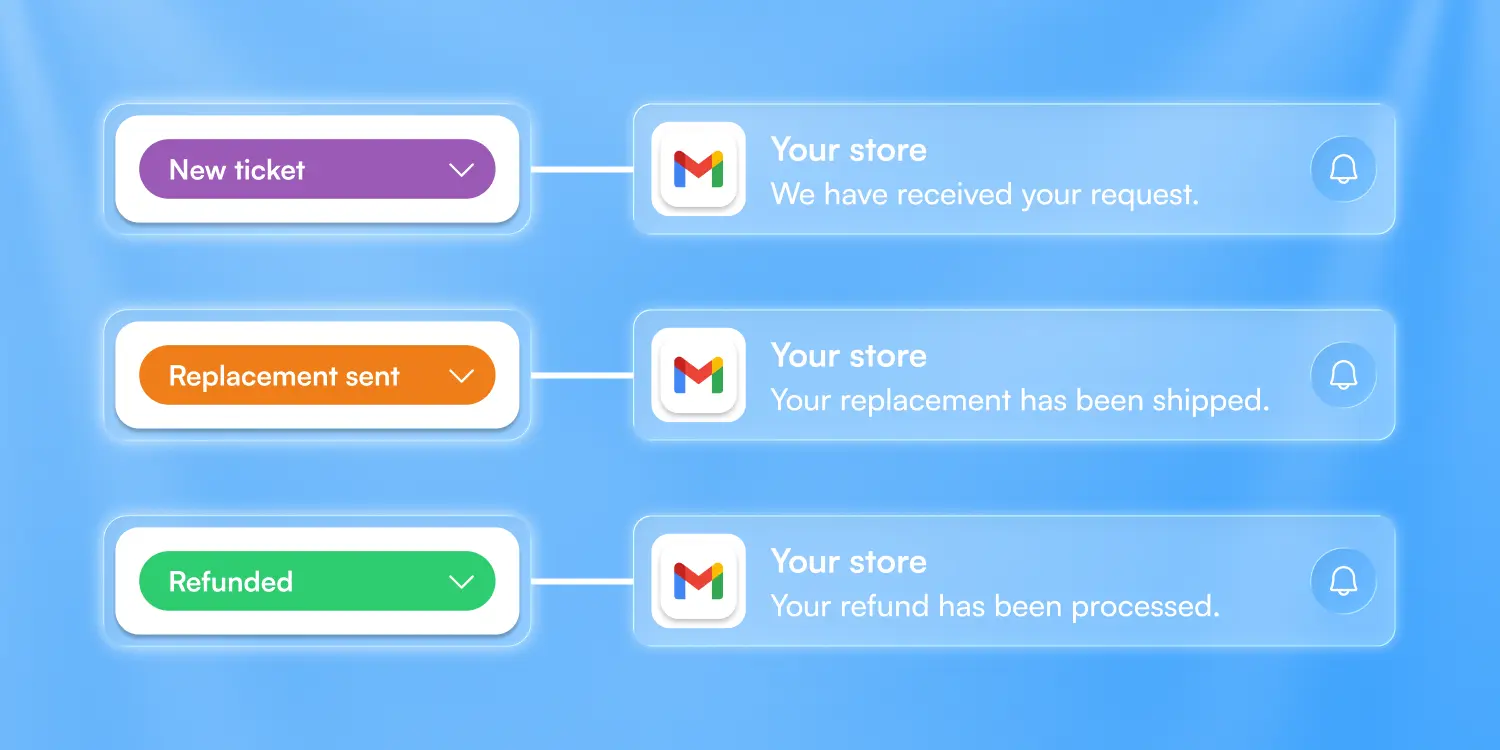
Clear communication sets the tone for a better customer experience from the very beginning. With Claimlane, these updates can be automated so customers are notified automatically whenever a ticket status changes.
Below are ten real examples of customer notifications that improve the returns experience 👇
10 Essential Email Updates for Returns and Warranty
1. Status: Refunded
Email: “Your refund is on the way!”
When to send it:
Send this as soon as the refund has been processed.
What to include:
- Confirmation of the refund
- How many days the customer should expect to wait before the money appears
How to automate it:
Set the email to send automatically when the ticket status is changed to Refunded.
2. Status: In Repair
Email: “We have received your item and repairs will take about 3 days.”
When to send it:
Send this right after the repair team checks in the item.
What to include:
- Estimated repair time
- Any additional steps
- When the customer will hear from you next
How to automate it:
Connect the email to the status In Repair so it is sent automatically when the item enters the repair stage.
Still relying on manual email threads for returns? Watch the webinar on why email is hurting your returns process and what to do instead.
3. Status: New Ticket
Email: “We have received your request and will review it shortly.”
When to send it:
Send immediately when a customer submits a return or warranty claim.
What to include:
- Confirmation that the ticket was created
- Expected response time
- A link to track the ticket
How to automate it:
Trigger this email automatically on New Ticket creation so customers get instant reassurance.
4. Status: Replacement Sent
Email: “Your replacement product has shipped.”
When to send it:
Send as soon as the replacement leaves your warehouse.
What to include:
- Shipping confirmation
- Expected delivery time
How to automate it:
Set the email to send automatically when the ticket status becomes Replacement Sent.
5. Status: Item Received at Warehouse
Email: “We have received your returned item at our warehouse.”
When to send it:
Send when the package is scanned upon arrival.
What to include:
- Confirmation that the item arrived safely
- What will happen next
- Estimated processing time
How to automate it:
This status is only possible with the Claimlane Warehouse Module, which allows warehouse teams to scan items and automatically update the ticket to Item Received at Warehouse. The email is sent instantly once this happens.
Replacing email with automated status updates is one of the easiest wins. Here are 4 simple changes that save hours of manpower every week.
6. Status: Approved
Email: “Good news! Your request has been approved.”
When to send it:
Send right after a claim, return, or refund request is approved.
What to include:
- A clear approval message
- What happens next
- Any actions the customer needs to take
How to automate it:
Set the email to send automatically when the ticket status moves to Approved.
7. Status: Denied
Email: “Your request has been reviewed. Here is our decision.”
When to send it:
Send as soon as your team finishes the evaluation.
What to include:
- A short and respectful explanation
- The reason for the decision
- Any alternative options if available
How to automate it:
Send automatically when the status becomes Denied so the customer receives timely information.
8. Status: On Hold
Email: “Your ticket is on hold while we investigate.”
When to send it:
Send whenever the ticket cannot progress further without more information or internal review.
What to include:
- The reason the ticket is on hold
- What your team is currently doing
- When the customer can expect the next update
How to automate it:
Connect the email to the On Hold status so it goes out as soon as the ticket is paused.
The goal is to move from inbox chaos to a structured system. Here's what an efficient returns management system looks like in practice.
9. Status: Completed
Email: “Your request has been resolved.”
When to send it:
Send immediately when the process is finished.
What to include:
- A clear confirmation
- Any relevant summary
- What the customer can expect next, if anything
How to automate it:
Send automatically once the ticket status changes to Completed.
10. Status: Awaiting Pickup
Email: “Your item is ready for pickup.”
When to send it:
Send when the repaired or replaced item is ready at the store or pickup point.
What to include:
- Pickup location
- Opening hours
- Any instructions the customer needs
How to automate it:
Trigger this email when the status is changed to Awaiting Pickup.
How to Set Up Status Based Email Automations
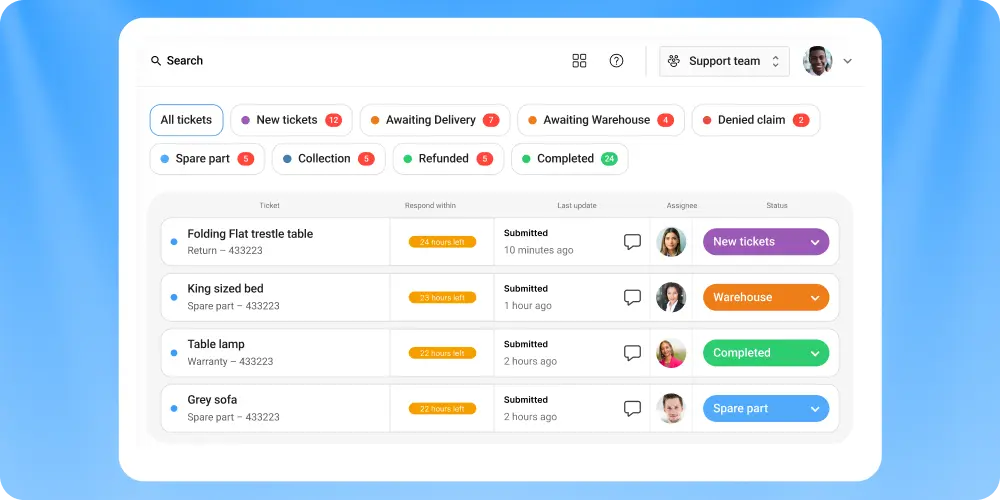
With Claimlane, you can create customized ticket updates that trigger whenever a status changes. These updates can happen in several ways:
- A support agent manually changes the ticket status
- An automation runs, such as a refund being processed
- A real world event occurs, like a parcel being scanned at the warehouse
Once your ticket statuses are defined, you can connect automatic emails to each status change. This ensures customers receive the right message at exactly the right time.
By automating these updates, you:
- Reduce time spent by support agents on manual communication
- Keep customers informed throughout the entire returns process
- Deliver a smoother, more transparent customer experience
If you want to set up these automations and improve your returns and warranty process, book a demo and we’ll walk you through everything Claimlane can do.