.webp)
Credit memos in Microsoft Dynamics 365 Business Central are the standard way to process refunds for returned goods. Every time a customer returns a product, whether from a sizing issue, a defect, or a warranty claim, the financial side of that return flows through a credit memo.
But creating credit memos manually for every return is slow, error-prone, and disconnected from the customer experience. Support agents resolve a claim in one system, then switch to Business Central to create the credit memo, copy over line items, apply the correct amounts, and post it. That handoff is where mistakes happen and time gets wasted.
This guide covers how credit memos work in Business Central, how to create them for returns, and how to automate the process by connecting BC to a dedicated returns platform.
- Credit memos in Business Central reverse sales transactions for returned goods.
- They can be created manually, from a posted sales invoice, or from a return order.
- Manual creation is slow and error-prone. Automating credit memo creation from a returns platform eliminates handoffs.
- Claimlane integrates with Business Central to automatically create credit memos when claims are resolved.
What Is a Credit Memo in Business Central?
A credit memo (also called a sales credit memo) is a document that reverses all or part of a posted sales invoice. It records a refund owed to the customer and adjusts inventory quantities when the returned item is received back.
What a credit memo does
- Reverses the revenue from the original sale (full or partial)
- Adjusts inventory quantities if items are returned to stock
- Creates a customer ledger entry showing the amount owed back
- Can trigger a payment (refund) to the customer
When to use a credit memo
- Customer returns a product for a refund
- Warranty claim results in a refund instead of replacement
- Pricing error on the original invoice needs correction
- Partial refund for a damaged item the customer keeps
How to Create a Credit Memo for Returns in Business Central
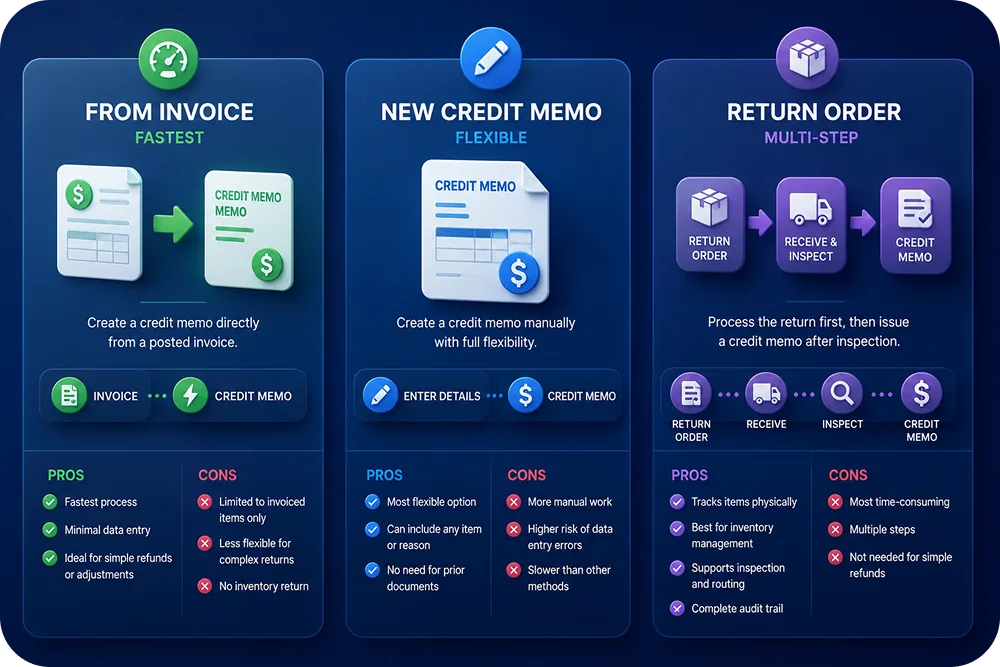
There are three main approaches to creating a credit memo in BC.
Method 1: Create from a posted sales invoice
This is the fastest method when refunding a specific invoice.
- Navigate to Posted Sales Invoices
- Find and open the original invoice
- Select Create Corrective Credit Memo
- BC auto-fills the credit memo with the invoice line items
- Adjust quantities or amounts if the return is partial
- Post the credit memo
This method links the credit memo directly to the original invoice, maintaining a clean audit trail.
Method 2: Create a new sales credit memo
- Navigate to Sales Credit Memos and select New
- Select the customer
- Add line items manually (copy from the original order or enter new)
- Set the quantities and unit prices
- Apply to the original invoice if needed (for accurate ledger matching)
- Post the credit memo
This method is more flexible but requires manual data entry.
Method 3: Use a sales return order
For complex returns with multiple steps (receive goods, inspect, then refund):
- Create a Sales Return Order
- Add the items being returned
- Receive the items into inventory when they arrive
- Create the credit memo from the return order
- Post the credit memo
Return orders are useful when the
Common Credit Memo Fields
The Problem with Manual Credit Memos
Manual credit memo creation works for low-volume returns. But as return volume grows, the manual process breaks down.
Data entry errors
Copying line items, quantities, and amounts from the claim to BC introduces errors. Wrong amounts, wrong items, or wrong customers lead to accounting discrepancies.
Slow processing
The agent resolves the claim, then switches to BC, finds the invoice, creates the credit memo, and posts it. Each credit memo takes 5-10 minutes of manual work.
No connection to the customer experience
The customer submits a claim. The agent resolves it. But the refund does not happen until someone manually creates the credit memo in BC. That delay frustrates customers.
Missing return reason data
Manual credit memos often lack detailed return reason codes, defect descriptions, and product data. This makes it impossible to analyze return patterns in BC reporting.

Automating Credit Memos with Claimlane + Business Central
The best way to eliminate manual credit memo creation is to connect Business Central to a dedicated returns and warranty platform that handles the customer-facing workflow.
Claimlane integrates with Business Central to create a closed-loop process:
- Customer submits a claim through the self-service portal
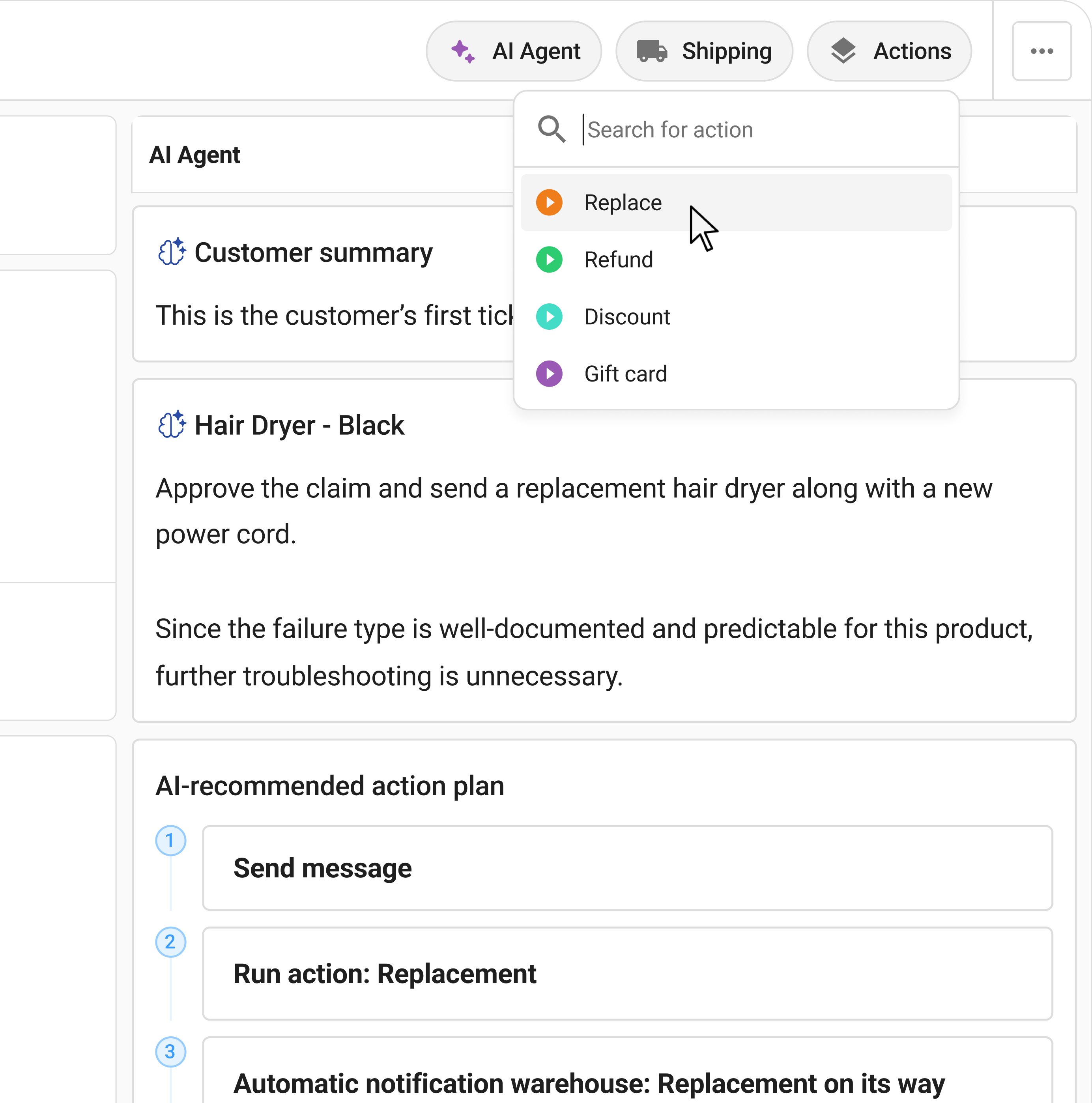
- Claimlane's AI Agent analyzes the claim and recommends resolution
- The support agent approves the resolution in Claimlane
- Claimlane automatically creates the credit memo in Business Central with the correct line items, amounts, and return reason codes
- Inventory is adjusted in BC
- The customer receives automatic status updates
No system switching. No manual data entry. No delay between claim resolution and refund.
What the integration handles
- Credit memo creation: Automatically generates a sales credit memo with the correct customer, line items, quantities, and amounts from the resolved claim.
- Invoice matching: Links the credit memo to the original posted sales invoice for a clean audit trail.
- Inventory adjustment: Updates item quantities in the correct location when goods are returned.
- Return reason codes: Populates BC return reason codes from the structured claim data in Claimlane.
- Order data pull: Retrieves original order and invoice data from BC to validate claims in Claimlane.
Credit Memo Best Practices for Returns
Always link to the original invoice
Use the "Applies-to Doc. No." field to connect the credit memo to the original sales invoice. This maintains an audit trail and ensures accurate customer ledger entries.
Use return reason codes consistently
Standardize return reason codes across the organization. Common codes: defective product, wrong item shipped, customer changed mind, warranty claim, damaged in transit.
Set up approval workflows
For credit memos above a certain amount, require manager approval before posting. BC supports approval workflows natively.
Separate warranty credits from standard returns
Use different document number series or dimension codes to distinguish warranty-related credit memos from standard return refunds. This is critical for warranty analytics.
Track credit memo costs against products
Use BC dimensions or item tracking to analyze which products generate the most credit memos. Cross-reference with Claimlane analytics for defect pattern analysis.
Handling Partial Refunds and Replacements
Partial refunds
Adjust the quantity or unit price on the credit memo line items. For example, if a customer keeps a damaged item but receives a 30% refund, set the unit price to 30% of the original.
Replacements without refund
No credit memo needed. Instead, create a new sales order for the replacement item at zero cost (or use an item charge). The Claimlane workflow can trigger replacement orders instead of credit memos based on the resolution type.
Exchanges
Create both a credit memo for the returned item and a new sales order for the replacement. Some businesses use return orders with replacement lines instead.
Warranty Claims and Credit Memos
Warranty claims add complexity to the credit memo process.
- The claim needs to be validated before any financial action
- Supplier cost recovery may be needed (the supplier, not the brand, should bear the cost)
- The resolution may be a repair, not a refund
- Different warranty terms apply to different products and regions
Handling all of this inside Business Central alone is impractical. BC does not have a customer-facing portal for claim submission, cannot analyze defect photos, and has no AI-powered triage. A dedicated warranty platform like Claimlane handles the claim lifecycle and triggers the correct BC financial action (credit memo, replacement order, or repair workflow) at the right time.